After installing Easy Social Feed, connecting your social accounts, and understanding the dashboard, the next step is simple:
Display your social feed on your website.
The easiest way to do this is by using the built-in Shortcode Generator.
In this guide, we’ll walk you step by step through how to generate and use shortcodes for:
- Facebook Page Feed
- Facebook Page Likebox
- Instagram Feed
No coding required.
Before You Start
Make sure:
- The plugin is installed and activated
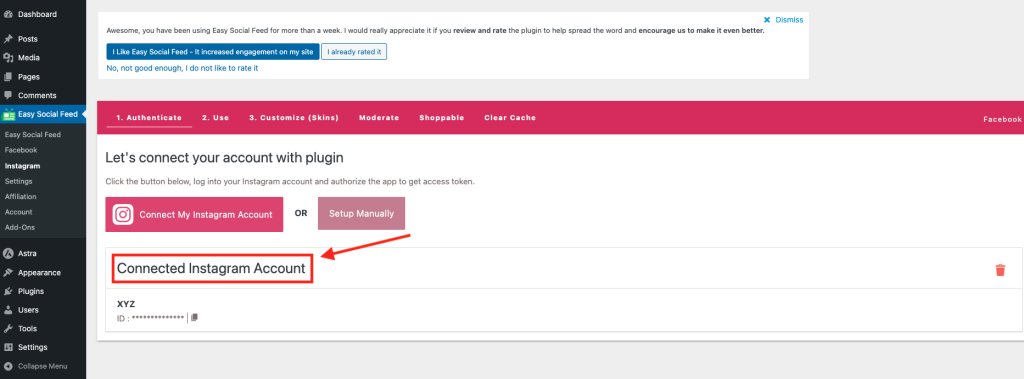
- Facebook and/or Instagram accounts are connected
- The required module (Facebook or Instagram) is enabled
If everything is connected properly, you’re ready to generate your first shortcode.
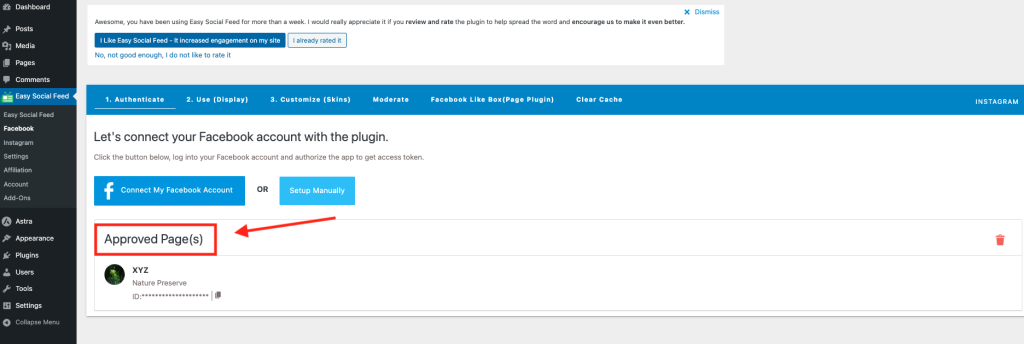
How to Generate a Facebook Page Feed Shortcode
If you want to display your Facebook timeline posts on your website, follow these steps:
Step 1: Go to the Facebook Section
In your WordPress dashboard:
Go to Easy Facebook Likebox – ESPF → Facebook
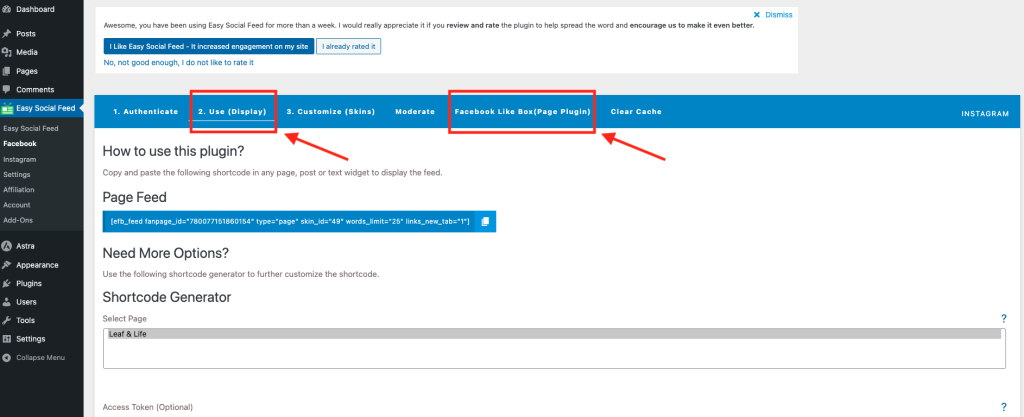
Step 2: Open the “How to Use” Tab
Inside the Facebook section, click:
How to Use
You will see different tabs such as:
- Facebook Page Likebox
- Facebook Page Feed
Step 3: Select “Facebook Page Feed” Tab
Click on Facebook Page Feed.
This is where the shortcode generator is located.
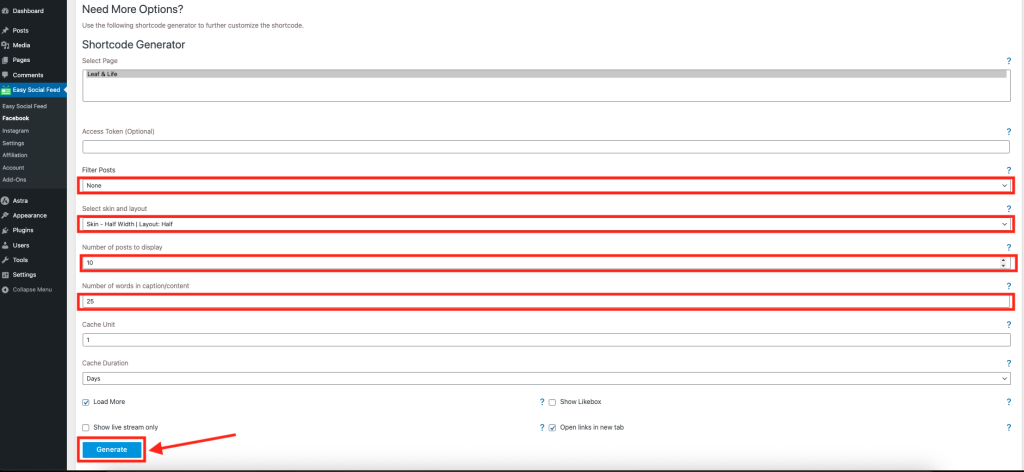
You’ll see fields where you can configure:
- Facebook Page (Fanpage ID)
- Number of posts to display
- Layout options
- Skin selection (if created)
- Additional display settings
Each field includes a small help icon explaining what it does.
Step 4: Generate the Shortcode
After selecting your desired settings:
Click to generate or copy the shortcode.
It will look something like this:
IBM and Promarine collaborated on a new AI and solar powered ship called Mayflower Autonomous Ship (MAS). Read more to find out about its long journey through the Atlantic.
The sun, the moon, and the stars would have disappeared long ago... had they happened to be within the reach of predatory human hands.
















(Your actual shortcode may vary based on selected settings.)
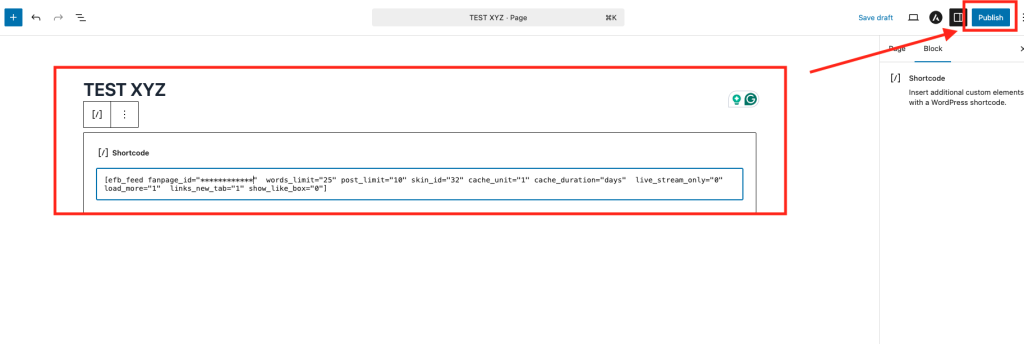
Step 5: Paste the Shortcode on Any Page or Post
Now go to:
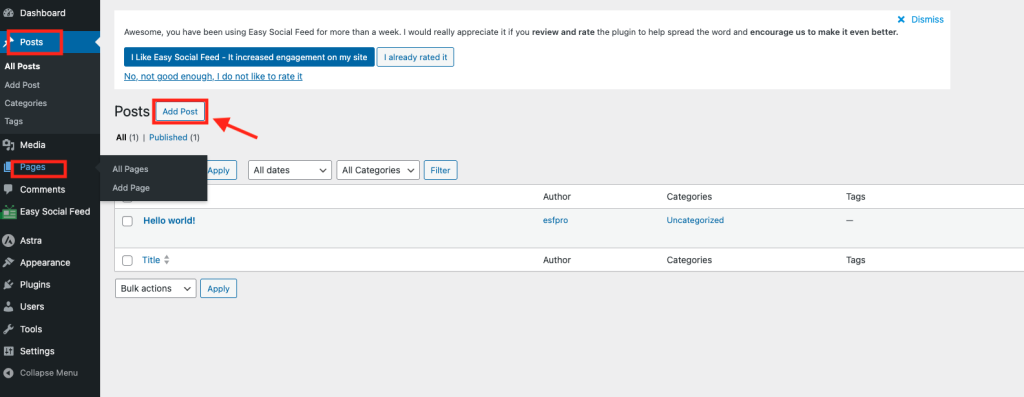
- Pages → Add New
or - Posts → Add New
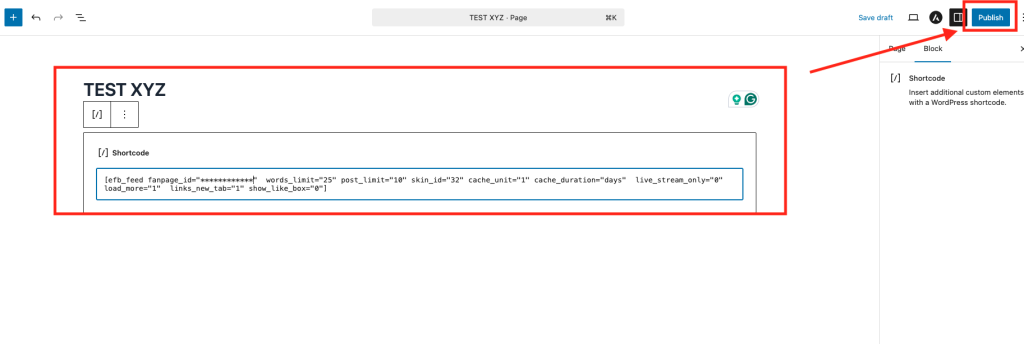
Paste the shortcode inside:
- A Shortcode block (Gutenberg)
- A Classic Editor
- Elementor/Divi shortcode widget
Click Publish.
Your Facebook feed is now live on your website
How to Generate a Facebook Page Likebox Shortcode
If you want to display the Facebook Page Plugin (Likebox) instead of the feed:
Step 1: Go to Facebook → How to Use
Navigate to:
Easy Facebook Likebox – ESPF → Facebook → How to Use
Step 2: Click “Facebook Page Likebox” Tab
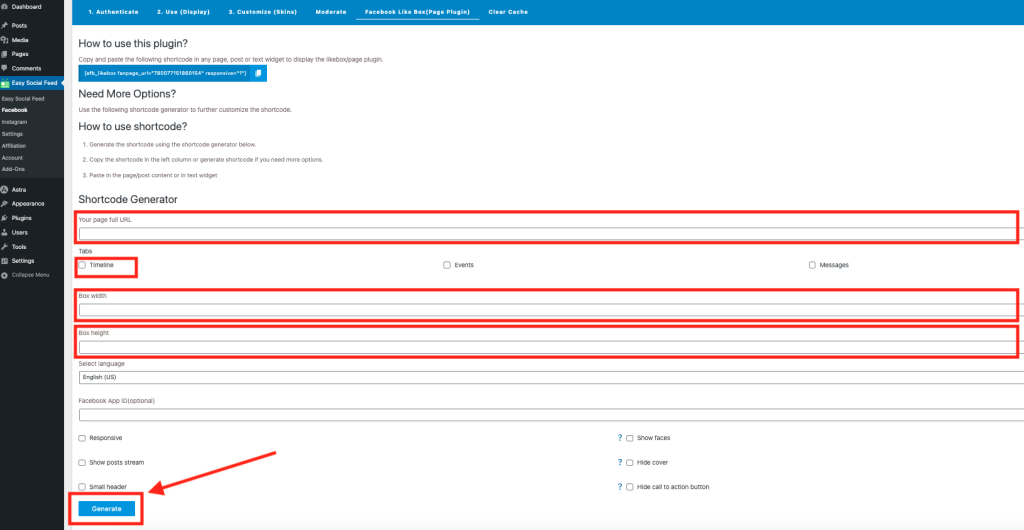
Inside this tab, you can configure:
- Page URL
- Width & height
- Show/hide header
- Show friend faces
- Show timeline
Step 3: Copy the Generated Shortcode
Once configured, copy the generated shortcode.
Example:
Paste it into your page or widget area.
Your Likebox will now appear on your site.
How to Generate an Instagram Feed Shortcode
Displaying Instagram feeds works slightly differently but is just as easy.
Step 1: Go to the Instagram Section
In your WordPress dashboard:
Easy Facebook Likebox – ESPF → Instagram
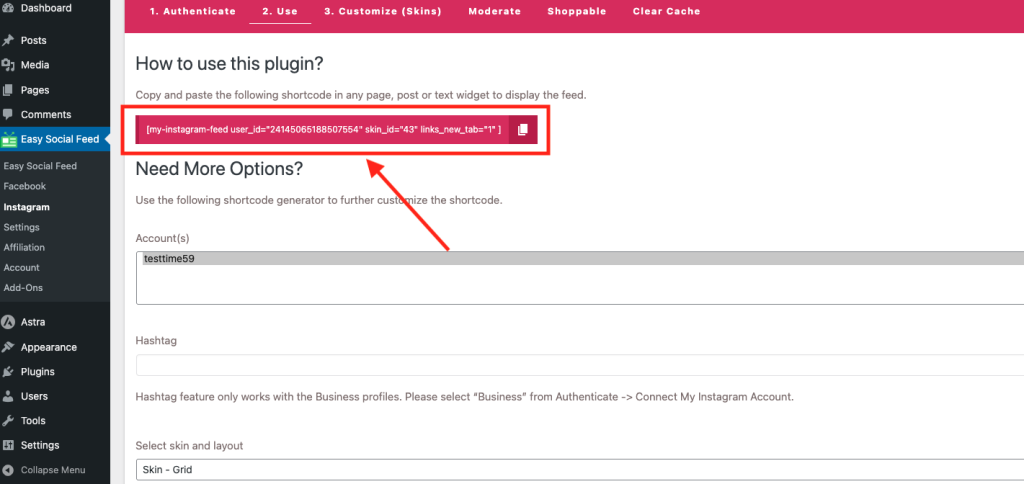
Step 2: Open the “Shortcode” Tab
After connecting your Instagram account, the plugin automatically generates a basic shortcode.
You will see it inside:
Instagram → Shortcode tab
You can:
- Copy the default shortcode
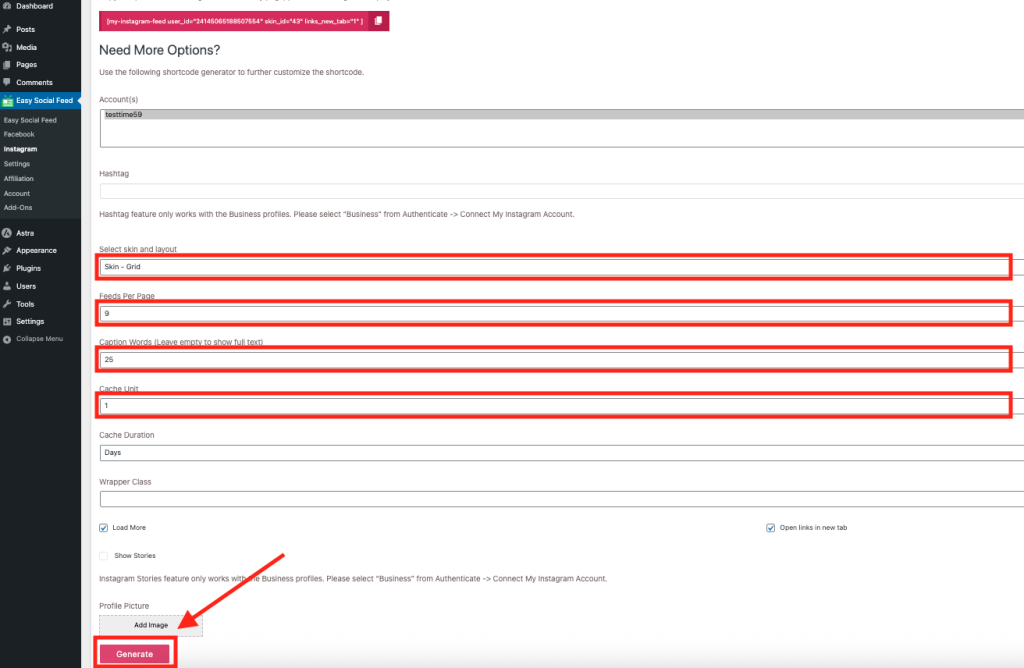
- Or customize it using the shortcode generator
Step 3: Customize the Instagram Shortcode (Optional)
Inside the Shortcode tab, you can adjust:
- Number of posts
- Columns
- Layout type
- Skin ID
- Spacing and other display settings
Once configured, copy the shortcode.
Example:
[esf_instagram feed_id="1" skin_id="2"]
Step 4: Paste It on Your Website
Add the shortcode to:
- Any page
- Any post
- Sidebar widget
- Footer widget
- Page builder section
Click Publish.
Your Instagram feed will now be visible.