
WordPress has moved toward a block-based editing system called Gutenberg. Instead of pasting shortcodes manually, you can now add content using blocks.
Easy Social Feed supports this modern approach, allowing you to display your Facebook and Instagram feeds directly using Gutenberg blocks.
In this guide, you’ll learn how to display social feeds using blocks, step by step.
Before You Start
Make sure:
- Easy Social Feed is installed and activated
- Facebook or Instagram accounts are connected
- Your feed is configured properly
- You’re using the Block Editor (Gutenberg)
If everything is ready, let’s begin.
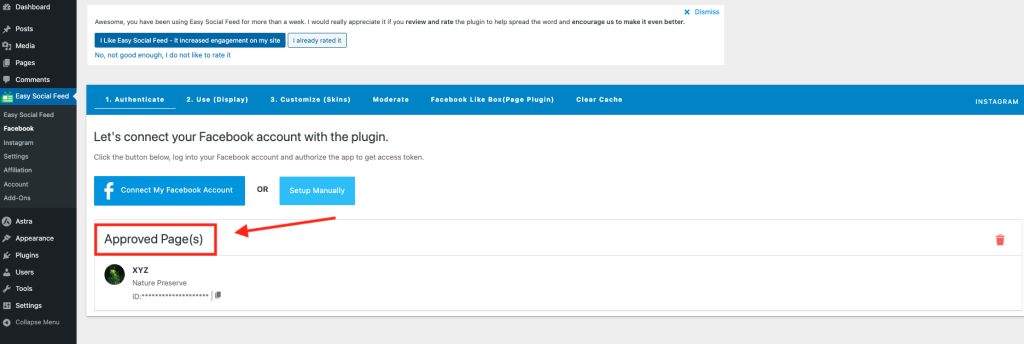
Method 1: Adding a Social Feed Using the Shortcode Block
Even in Gutenberg, you can still use shortcodes, but inside a block.
Step 1: Open a Page or Post
Go to:
Pages → Add New
or
Posts → Add New
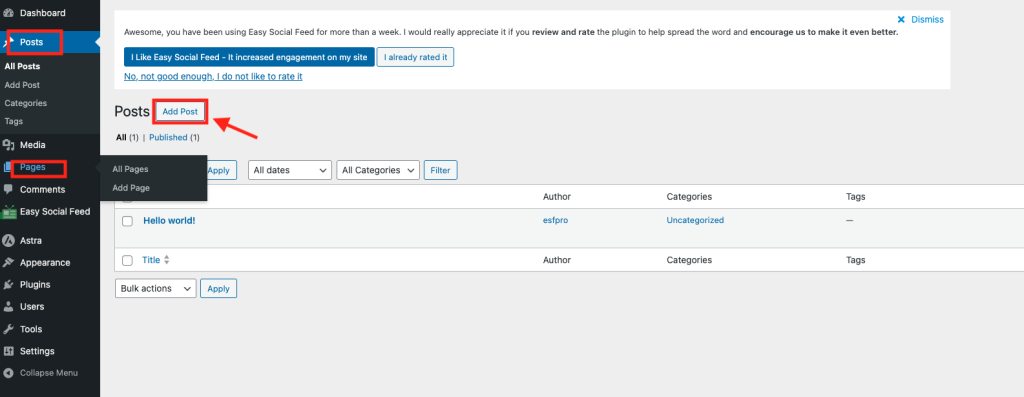
Step 2: Add a Shortcode Block
Click the + (Add Block) button.
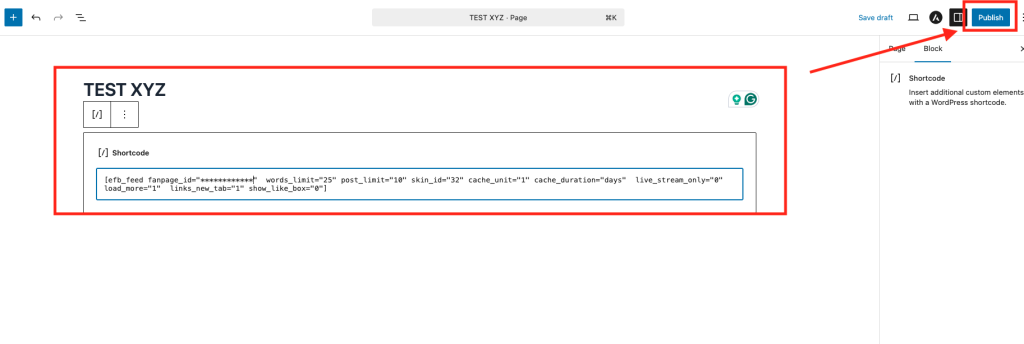
Step 3: Paste Your Feed Shortcode
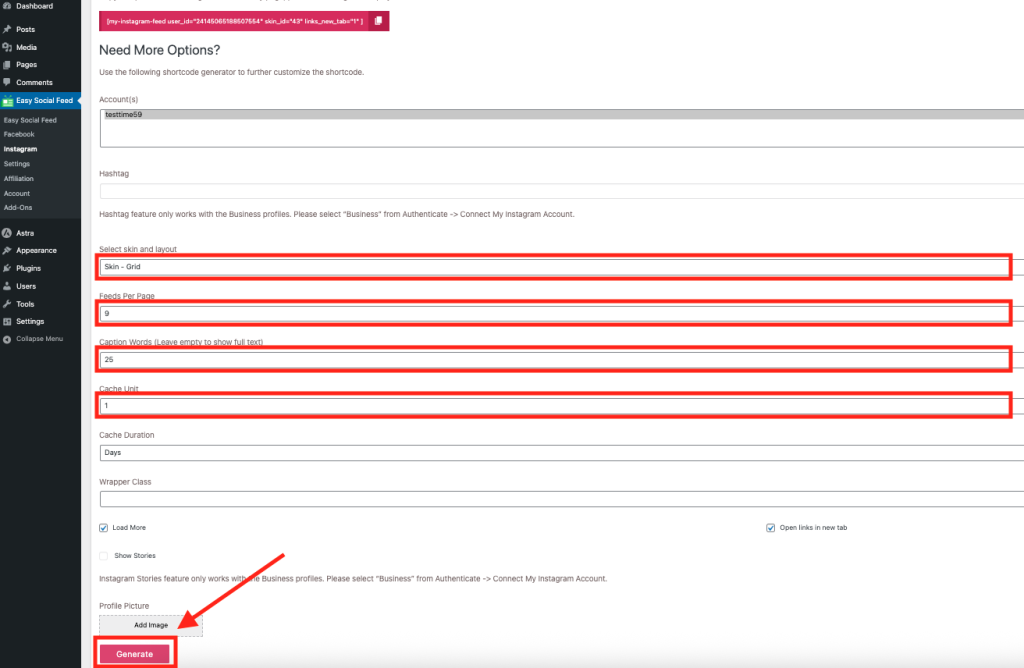
Paste the shortcode generated from:
- Facebook → How to Use
or - Instagram → Shortcode tab
Click Publish.
Your feed will now display on that page.
This method works for:
- Facebook Page Feed
- Facebook Likebox
- Instagram Feed
Method 2: Using Dedicated Easy Social Feed Blocks (If Available)
Some versions of Easy Social Feed include pre-built blocks for:
- Facebook Fullwidth Feed
- Facebook Halfwidth Feed
- Facebook Thumbnail Layout
If these blocks are available:
Step 1: Click the + (Add Block)
Search for:
“Facebook”
or
“Easy Social Feed”
Step 2: Select the Desired Feed Block
Choose the block style you prefer:
- Fullwidth
- Halfwidth
- Thumbnail
Step 3: Configure Block Settings
After inserting the block, you can adjust settings from the right sidebar panel, such as:
- Page selection
- Layout
- Skin selection
- Display options
Click Update or Publish.
Your feed is now live.
Display Social Feeds in Block-Based Themes (Full Site Editing)
If you’re using a block-based theme:
- Go to Appearance → Editor
- Select the template (Header, Footer, Sidebar)
- Click the + (Add Block) button
- Add a Shortcode block or Easy Social Feed block
- Paste your shortcode or configure settings
- Save changes
Your feed will now appear across the selected template area.
Best Practices When Using Blocks
To ensure your layout looks clean:
- Match feed width to container width
- Use fewer columns for narrow layouts
- Test on mobile preview
- Use Skins for advanced styling
- Avoid overcrowding pages with too many feeds
Blocks give you flexibility but clean design always wins.
Shortcode vs Block: Which Should You Use?
| Method | Best For |
|---|---|
| Shortcode Block | Maximum control & advanced customization |
| Dedicated Feed Block | Quick setup & beginner users |
| Widget Block | Sidebars & footers |
Both methods work perfectly, it depends on your preference and theme.