
Not every social feed needs to appear on a full page.
Sometimes, the best place to display your Facebook or Instagram feed is in your:
- Sidebar
- Footer
- Header area
- Blog column
- Shop sidebar
This is where WordPress widgets become extremely useful.
In this guide, you’ll learn how to display your Easy Social Feed using widgets quickly and easily.
Why Use Widgets for Social Feeds?
Widgets are perfect when you want to:
- Show a compact Facebook feed in your sidebar
- Add a Facebook Likebox in your footer
- Display Instagram posts next to blog articles
- Keep social content visible across multiple pages
Widgets allow your feed to appear automatically wherever that widget area is active.
Before You Start
Make sure:
- Easy Social Feed is installed and activated
- Facebook and/or Instagram accounts are connected
- You have already generated your shortcode
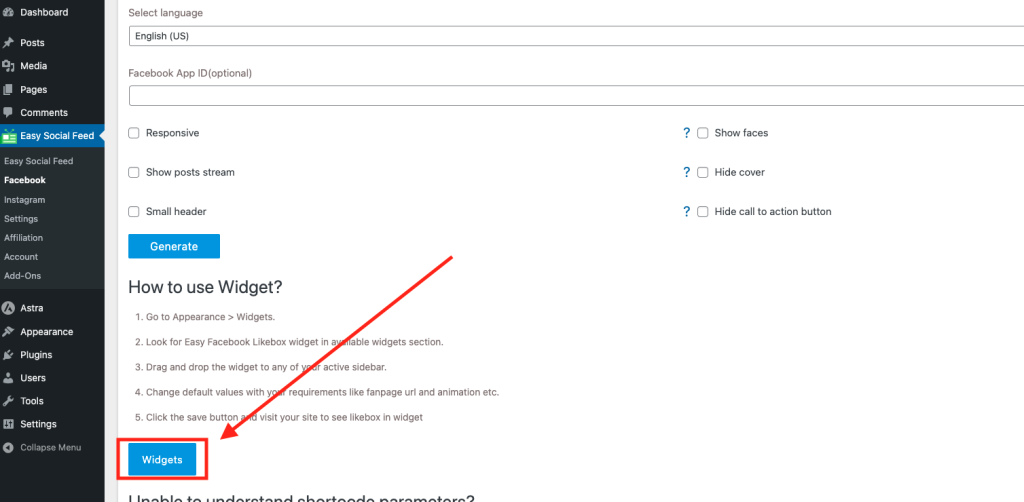
If not, first create your feed and copy the shortcode from:
Facebook → How to Use
or
Instagram → Shortcode tab
Method 1: Using the Shortcode Widget (Recommended)
This is the most common and flexible method.
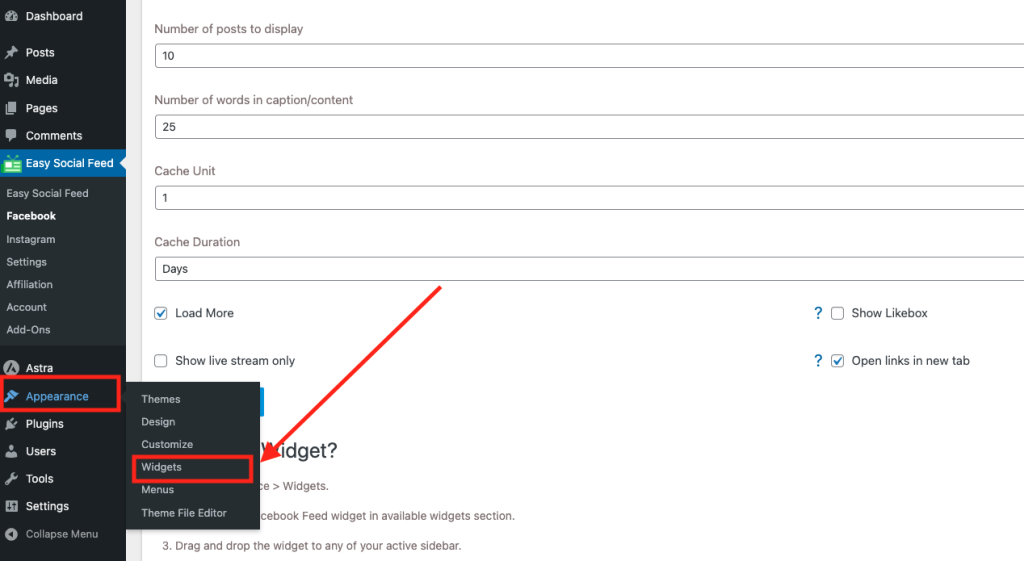
Step 1: Go to Appearance → Widgets
In your WordPress dashboard:
Navigate to Appearance → Widgets
You will see available widget areas like:
- Sidebar
- Footer 1
- Footer 2
- Header widget area (depending on theme)
Step 2: Add a Shortcode Widget
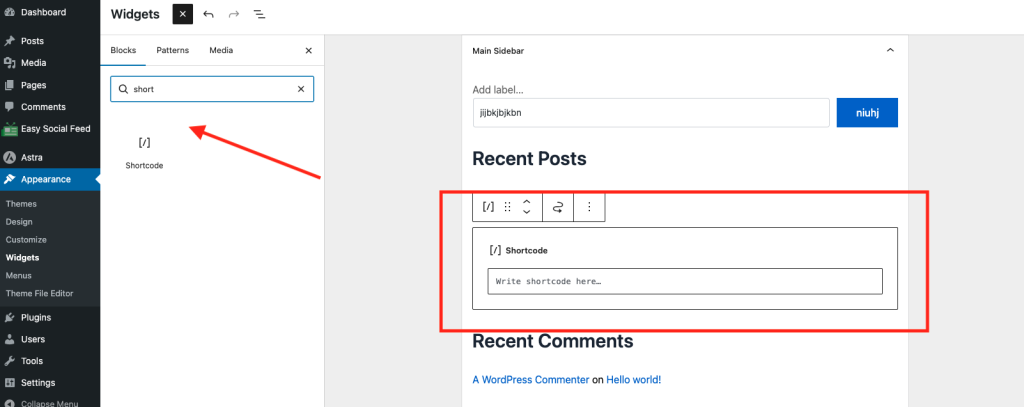
Find the Shortcode widget and:
- Drag it into your desired widget area
or - Click the “+” icon and select Shortcode

Step 3: Paste Your Feed Shortcode
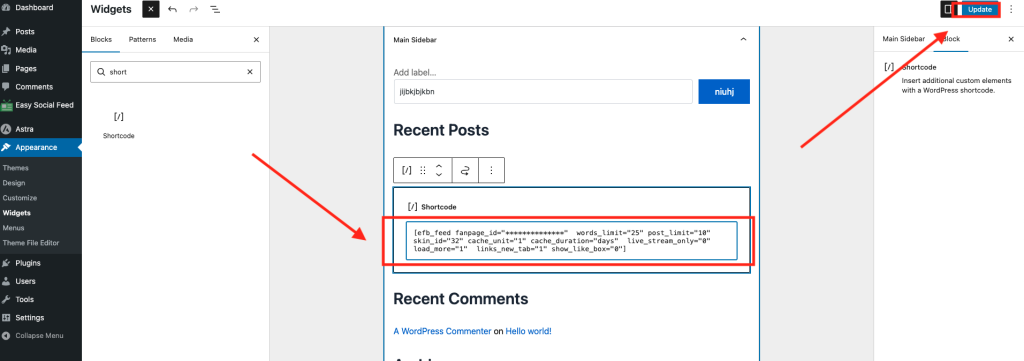
Paste the shortcode you copied earlier.
Click Update.
Step 4: Check Your Website
Visit your website frontend.
Your social feed should now appear in the selected widget area
Method 2: Using Gutenberg Widget Blocks (Block-Based Themes)
If you’re using a block-based theme:
- Go to Appearance → Editor
- Select the template that contains your sidebar or footer
- Click the “+” button
- Add a Shortcode block
- Paste your feed shortcode
- Save changes
Your feed will now display in that template area.
Best Practices for Widget Feeds
Because widget areas are smaller, consider:
- Reducing number of posts displayed
- Using fewer columns
- Choosing a compact layout
- Disabling large headers
- Using a smaller Likebox width
You can adjust these settings in:
Facebook → Use (Display)
Facebook → Skins
Instagram → Skins
Where Widgets Work Best
Widgets are ideal for:
✔ Blog sidebars
✔ WooCommerce shop sidebars
✔ Footer areas
✔ Contact pages
✔ Landing pages
✔ Membership dashboards
They keep your social presence visible without overwhelming your main content.